
Before You Start
For employees to see the option to invite a dependent, Spouse Access must be enabled on your board.
- Go to your board's Setup tab.
- Click Access & Sharing in the left sidebar.
- Make sure Spouse Access is toggled to Allow.
- Customize the automated message template for employees by clicking "Edit Spouse Message." (Employees can customize their message later)
- Click Save.
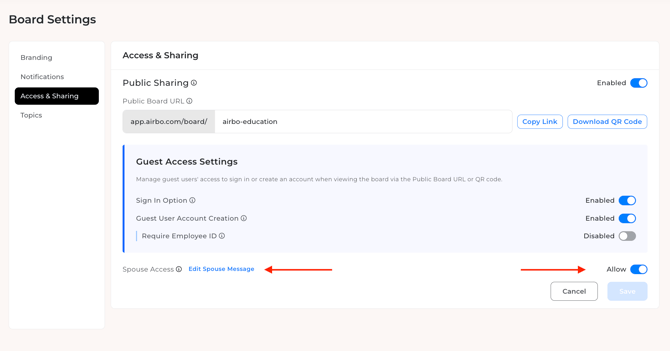
Note: If Spouse Access is not enabled, employees will not see the invite option in their Account Settings.
Key Features
- Self-service invites: Employees can invite a dependent without admin help.
- Bulk upload protection: Dependents are protected during user file processing, so they won't be accidentally removed.
- Labeled exports: User exports from the Users tab label dependents, making it easy to tell who's who.
How Self-Service Invites Work
Employees can add a dependent on their own. Here's what they'll do:
Step 1: Open Account Settings
- The employee accesses their Airbo account.
- They click their name or profile icon in the top right corner.
- They select Account Settings.
Step 2: Invite a Dependent
- In Account Settings, they'll see an option to invite a dependent.
- They enter the dependent's name and email address.
- The user can customize their invite message.
- Tip: You can customize the automated message template for employees in the Setup tab under “Access & Sharing”
- They click Send Invitation.
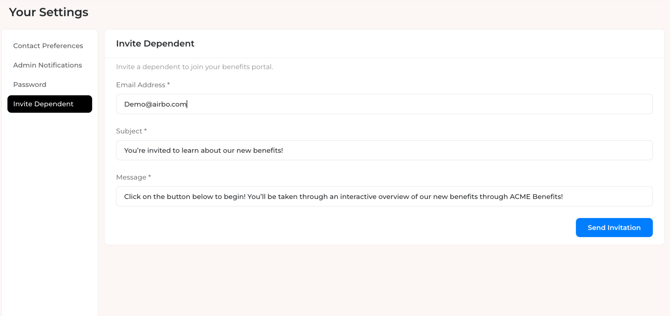
What happens next: The dependent receives an email invitation to join Airbo. Once they accept, they'll be linked to the employee's account.
Tip: Each dependent gets their own login and can interact with tiles independently.
What This Means for Admins
This feature reduces manual work on your end. Here's what to know:
Less Manual Dependent Management
You don't need to add dependents one by one. Employees take care of it themselves from their Account Settings.
Note: You don't need to create a tile with the interaction to invite dependents. Employees can handle it themselves directly from Account Settings.
Dependents Are Protected During Bulk Uploads
When you upload a user file, the system recognizes dependent accounts. Dependents will not be removed or overwritten during bulk processing.
This means you can run your regular user uploads without worrying about accidentally deleting dependent accounts.
User Exports Label Dependents
When you export users from the Users tab, dependent accounts are clearly labeled. This makes it much easier to:
- See which accounts are dependents vs. employees
- Audit your user list
- Understand your total user breakdown
Tips for Success
- Let employees know: Consider sending a broadcast or adding a tile to let employees know they can invite a dependent.
- Check your exports: When you pull a user export, look for the dependent labels. This is helpful for verifying your user counts.
- Verify Spouse Access is on: Make sure the toggle is enabled in Access & Sharing before telling employees about the feature.
Troubleshooting
An employee says they don't see the option to invite a dependent. First, confirm that Spouse Access is toggled to Allow in your board's Access & Sharing settings. If it's already enabled and the option still doesn't appear, contact support so we can check their account.
A dependent didn't receive their invite email. Ask the employee to double-check the email address they entered. The dependent should also check their spam or junk folder. If the issue continues, reach out to support.
I'm worried about bulk uploads affecting dependents. Dependents are protected during user file processing. They won't be removed or overwritten when you upload a new user file.
Related Articles
Need more help? Contact support@airbo.com