
Before You Start
- You need Admin access to your Airbo board
- Emails must be scheduled at least 1 hour before send time
Time needed: 5 minutes to troubleshoot
How Email Scheduling Works in Airbo
When you schedule a newsletter or broadcast, Airbo queues it for delivery at your chosen time. Here's what happens behind the scenes:
- You set a date and time for your email
- Airbo prepares the email content
- At the scheduled time, Airbo sends to all eligible employees
- Delivery can take 15-30 minutes for large lists
Note: Emails are sent in your board's timezone. Check your board settings if times seem off.
Checking If Your Email Was Sent
Step 1: Go to the Broadcasts tab
- Log in to your Airbo admin dashboard
- Click Broadcasts in the navigation
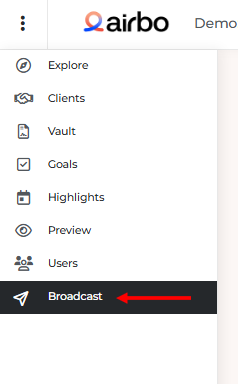
What you'll see: A list of all scheduled and sent broadcasts
Step 2: Check the email status
Look at the status column for your email:
- Scheduled - Email is queued and waiting to send
- Sent - Email was delivered successfully
- Draft - Email was never scheduled
Tip: If the status shows "Scheduled" but the time has passed, refresh the page. It may take a few minutes to update to "Sent."
Common Reasons Emails Don't Send
1. Email was saved as Draft, not Scheduled
What happened: You created the email but didn't click the Schedule button.
Fix: Open the email, review the content, and click Schedule to set a send time.
2. No employees in the audience
What happened: The email was scheduled, but no one matched the audience criteria.
Fix: Check your audience settings. Make sure employees are added to your board and match any filters you set.
3. Tiles are not in the Live folder
What happened: Your newsletter includes tiles, but the tiles aren't published yet.
Fix: Move your tiles to the Live folder before the scheduled send time. Newsletters only include live content.
4. Past send time was selected
What happened: You scheduled the email for a time that already passed.
Fix: Edit the email and select a future date and time.
What To Do If an Email Failed
Step 1: Check the Broadcast details
- Click on the email in your Broadcasts list
- Look for any error messages or warnings
- Note the scheduled time and audience size
Step 2: Resend the email
If the email shows issues:
- Click Duplicate to create a copy
- Review and fix any problems
- Schedule for a new time
- Delete the original failed email
Warning: Don't send the same email twice to avoid confusing employees.
Tips for Success
- Do this: Schedule emails at least 2 hours before you need them sent
- Avoid this: Scheduling emails for times when you can't check delivery
- Remember: Always preview your email before scheduling
Troubleshooting Quick Reference
| Problem | Likely Cause | Solution |
| Email shows "Draft" | Never scheduled | Open and click Schedule |
| Email shows "Scheduled" but didn't send | Time hasn't passed yet | Wait and refresh |
| Email sent but employees didn't receive | Email filtering | Check spam folders |
| No employees in report | Empty audience | Verify employee list |
Related Articles
Need more help? Contact support@airbo.com