
Before You Start
-
Download the Airbo CSV template before creating your file
-
Save your file as CSV (not Excel .xlsx)
Time needed: 5 minutes to read, varies for file preparation
Frequently Asked Questions
How long does processing take?
Census file processing takes 24 to 48 hours. You'll receive an email notification when your file has been processed.
Tip: Plan your uploads at least 2 days before you need employees to have access. Don't upload right before a campaign launch.
What file format do I need?
Airbo requires a CSV file (Comma Separated Values).
How to save as CSV from Excel:
-
Open your file in Excel
-
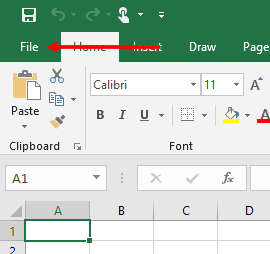
Click File > Save As
-
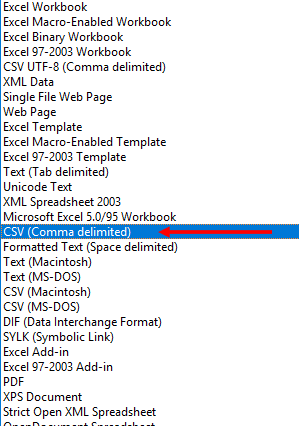
Choose CSV (Comma delimited) from the format dropdown
-
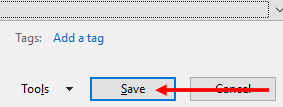
Click Save
Warning: If you upload an Excel file (.xlsx or .xls), it will not process correctly.
What columns are required?
At minimum, your file needs:
| Column | Required? | Notes |
| Full Name or First/Last Name | Yes | One column or two separate columns |
| Email Address | Yes | Must be valid, working email |
| Phone Number | No | Optional, for SMS features |
Note: Download the template from Airbo to see the exact column headers expected.
What happens when I upload a new file?
Airbo compares your new file to the existing employee list:
-
New employees are added automatically
-
Existing employees stay unchanged
-
Removed employees (in old file but not new) are deactivated
Important: Always upload a complete file with all current employees. Don't upload just the new hires.
What happens to terminated employees?
When an employee is not included in your new census upload:
-
Their account is deactivated
-
They can no longer access the board
-
Their historical data is preserved for reporting
Note: You don't need to manually remove employees. Just exclude them from your next census file.
Can I add employees one at a time?
Yes! For small additions, use the manual add feature:
-
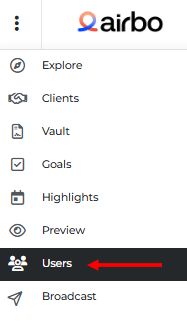
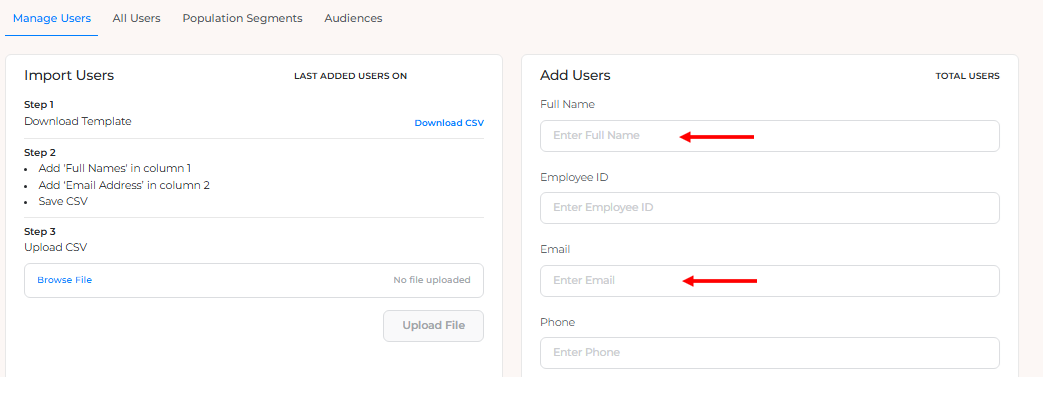
Go to your Board then click Users
-
In Add Users, under Manage Users, enter name and email
-
Click Add User
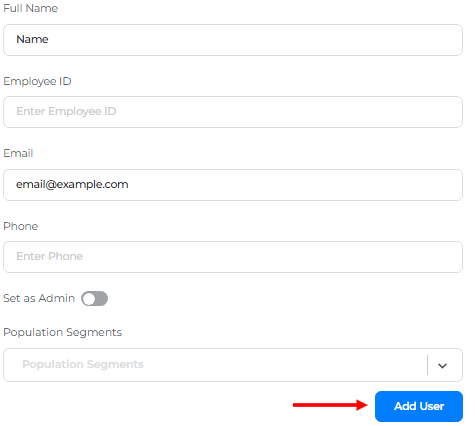
This is instant, no 24-48 hour wait required.
Why did my upload fail?
Common reasons for failed uploads:
1. Wrong file format
-
Uploaded Excel instead of CSV
-
Fix: Save as CSV and re-upload
2. Missing required columns
-
File doesn't have name or email columns
-
Fix: Use the Airbo template
3. Invalid email addresses
-
Typos or formatting errors in emails
-
Fix: Review and correct email addresses
4. Special characters
-
Names contain characters that break the CSV
-
Fix: Remove special characters or use UTF-8 encoding
How do I update an employee's email address?
Option 1: Upload a new census file
Include the employee with their new email. Airbo matches by name.
Option 2: Edit manually
-
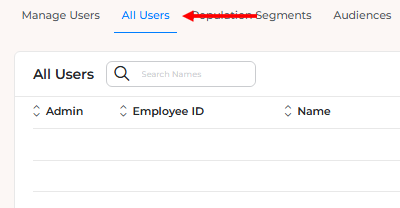
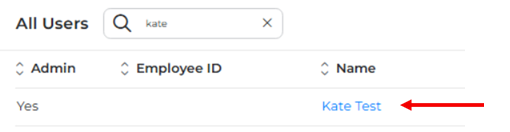
Go to your Board then click Users > All Users
-
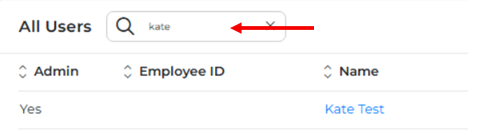
Search for the employee
-
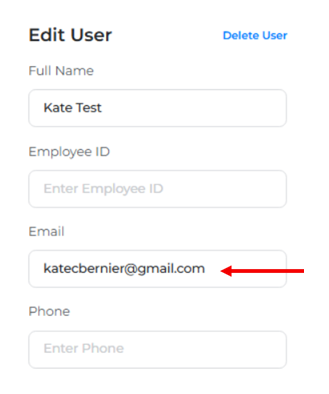
Click their name
-
Update the email field
-
Save changes
How often should I update my census?
Most customers update monthly. Consider updating:
-
When new employees are hired
-
When employees leave
-
Before major campaigns or open enrollment
-
At least quarterly to keep data fresh
Troubleshooting Quick Reference
| Problem | Likely Cause | Solution |
| Upload stuck processing | Large file or system queue | Wait 48 hours, then contact support |
| Employees not showing up | Processing not complete | Wait for confirmation email |
| Duplicate employees | Uploaded twice | Remove duplicates from file |
| Wrong employee count | Partial file uploaded | Upload complete employee list |
| Email errors | Invalid email format | Check for typos, add @ symbol |
Tips for Success
-
Do this: Keep a master employee list that you update regularly
-
Avoid this: Creating new files from scratch each time
-
Remember: The template ensures your columns are formatted correctly
Related Articles
Need more help? Contact support@airbo.com