
Add Your Audience in a Tile
Once you create an audience, you can tag specific Tiles.
Step 1: Open your tile for editing
- Navigate to your tile
- Enter edit mode
Step 2: Find the Audience setting
- Scroll down to the Tile Settings section
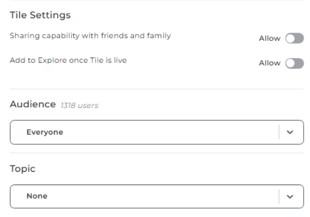
- Look for the Audience dropdown
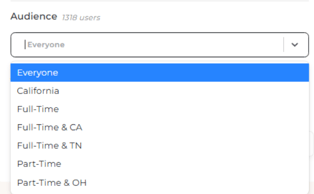
Step 3: Select your audience
- Click the Audience dropdown
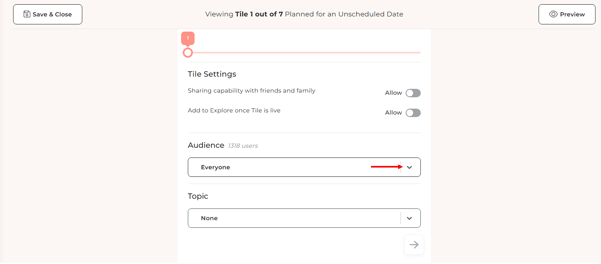
- Choose from:
-
- Everyone: All contacts can see the tile
- [Your custom audience]: Only people in that audience see the Tile
What you'll see: The number of users who will see the Tile updates based on your selection.
Tips for Success
- Use clear names: Names like "2024 OE Eligible - Full Time" are easier to find than "Audience 1."
- Check the size: Review your audience size before saving. If it's zero, your segments might not overlap.
Troubleshooting
My audience size shows zero Check that your segment combinations are correct. If you used AND logic, employees must match all criteria. Some combinations may not have any employees in common.
I can't find my audience in the dropdown Make sure you saved the audience after creating it. Return to the Audiences tab to confirm it appears in your list.
Related Articles
- How to Create Custom Audiences
- How to Create a Highlight
- How to Edit Your Highlight Tiles
- How to Share Tiles Using Email and Text Digest
- How to Upload an Eligibility File
Need more help? Contact support@airbo.com