
Before You Start
- You need admin access to your Airbo account
- Population segments should already be set up for your organization
- Know which employee groups you want to target
Time needed: 5-10 minutes
Tip: Need to add or update population segments? Go to Manage Users and upload a new user file. The segments in your file will become available when creating audiences.
What Are Custom Audiences?
Custom audiences let you group employees based on their population segments. This helps you send the right content to the right people.
For example, you might create an audience for "Full-time employees in California" or "Part-time workers enrolled in the HSA plan."
Two ways to combine segments:
- OR logic: Employees in segment A or segment B will see your content
-
AND logic: Employees must be in both segment A and segment B to see your content
Create a New Audience
Follow these steps to build your custom audience.
Step 1: Go to the Audiences page
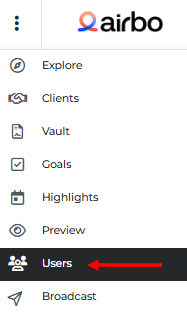
1. Click Users in your navigation menu
2. Select Audiences
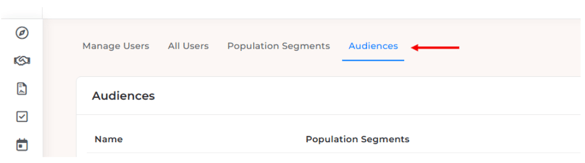
What you'll see: A list of any existing audiences with their names, population segments, and audience sizes.
Step 2: Open the Create Audience form
1. Click the Create Audience + button in the top right corner
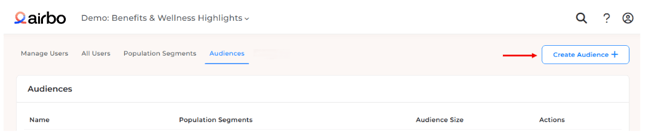
What you'll see: A popup form where you can name and configure your audience.
Step 3: Name your audience
1. Type a clear, descriptive name in the Audience Name field

2. Use names that help you remember who's in the group (like "Full-time Remote Workers" or "CA Benefits Eligible")
Tip: Choose names that describe who the audience includes. This makes it easier to find the right audience later.
Step 4: Select population segments
1. Click the Select segments... dropdown
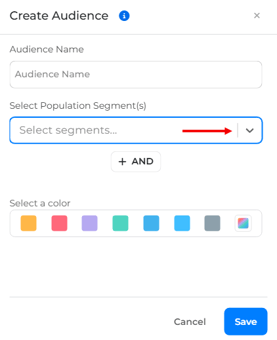
2. Choose one or more population segments
3. If you select multiple segments in this box, they use OR logic
Example: Selecting "Full-time" and "Part-time" means employees in either group will be included.
Step 5: Add AND logic (optional)
Want to narrow your audience further? Use the AND feature.
1. Click the + AND button below your first selection
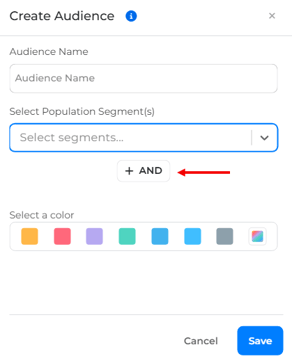
2. A new segment selector appears
3. Choose additional segments that employees must also match
Example: Select "Full-time" in the first box, then click AND and select "California" in the second box. Now only full-time employees in California will be included.
Note: The AND feature helps you create precise audiences. Employees must match all the criteria you set.
Step 6: Pick a color
1. Select a color from the palette
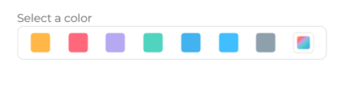
2. This color helps you identify the audience while editing tiles
Step 7: Save your audience
1. Review your selections
2. Click the Save button
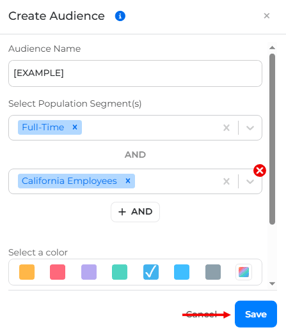
What you'll see: Your new audience appears in the Audiences list with the segment criteria and total audience size.
Tips for Success
- Use clear names: Names like "2026 OE Eligible - Full Time" are easier to find than "Audience 1."
- Check the size: Review your audience size before saving. If it's zero, your segments might not overlap.
Troubleshooting
My audience size shows zero Check that your segment combinations are correct. If you used AND logic, employees must match all criteria. Some combinations may not have any employees in common.
I don't see the population segment I need Upload an updated user file under Manage Users. Any new segments in your file will become available for audience creation.
Related Articles
- How to Upload an Eligibility File
- How to Add Your Audience to a Broadcast
- How to Add your Audience to a Tile
- How to Share Tiles Using Email and Text Digest
- How To Send a Broadcast
Need more help? Contact support@airbo.com