
Before You Start
- You must be an admin to delete a highlight
- Make sure you want to delete the highlight, not archive it (see the section below for the difference)
Time needed: About 2 minutes
Deleting vs. Archiving: Know the Difference
Before you delete a highlight, make sure that's what you really want to do. Deleting and archiving are not the same thing.
⚠️ Warning: Deleting a highlight is not the same as archiving it. These are two separate actions with very different outcomes.
Archiving a highlight hides it from view but keeps all the data intact. You can restore an archived highlight at any time. Nothing is lost.
Deleting a highlight starts a 30-day countdown. After those 30 days, the highlight and all of its data are permanently removed. This includes tiles, responses, engagement data, and any associated content.
⚠️ Warning: After the 30-day recovery period ends, all data tied to the deleted highlight is gone forever. It cannot be recovered by anyone, including Airbo support.
How to Delete a Highlight
Step 1: Go to your board
- Log in to your Airbo admin account
- Navigate to the board that contains the highlight you want to delete
Step 2: Open the actions menu
- Find the highlight you want to delete in your list
- Click the three-dot menu (⋮) on the farright side of that highlight's row
- A dropdown menu will appear with several options: Duplicate, Create Template, Archive, Delete, Copy Link, and Download QR Code
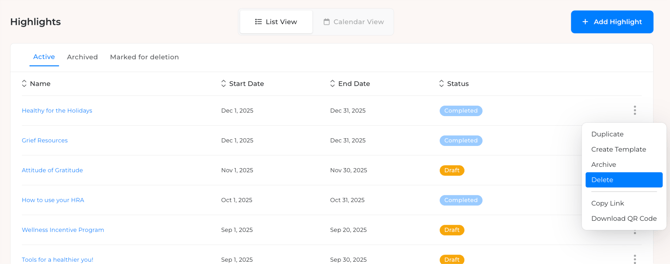
Step 3: Select Delete
- Click Delete from the dropdown menu
- You will see a confirmation prompt. Read it carefully.
- Confirm that you want to delete the highlight
What you'll see: The highlight will move from the Active tab to the Marked for deletion tab at the top of your Highlights page. It enters a 30-day recovery window.
Tip: Notice that Archive and Delete are both in the same three-dot menu. Take a moment to make sure you're clicking the right one. If you only want to hide the highlight from employees, Archive is the better choice.
The 30-Day Recovery Period
After you delete a highlight, it is not removed right away. Here is how the recovery period works:
- Days 1 through 30: The highlight moves to the Marked for deletion tab on your Highlights page. You can still recover it during this window if you change your mind.
- After Day 30: The highlight and all associated data are permanently deleted. There is no way to get it back.
Note: To check on highlights pending deletion, click the Marked for deletion tab at the top of your Highlights page. If you realize you made a mistake, act quickly. You have 30 days to recover a deleted highlight before the data is gone for good.
Tips for Success
- Do this: Double-check that you want to delete, not archive, before confirming. Ask yourself, "Do I need this data in the future?"
- Avoid this: Do not assume you can recover data after the 30-day window. Once it's gone, it's gone.
- Remember: Archiving keeps all your data safe and lets you restore at any time. Deleting starts a permanent removal process.
Troubleshooting
I don't see the option to delete a highlight. Only site admins and client admins have permission to delete highlights. If you don't see the option, check with your admin to confirm your role.
I deleted a highlight by mistake. Can I get it back? Yes, but only within 30 days of deletion. Go to the Marked for deletion tab on your Highlights page to find and recover it. If more than 30 days have passed, the data cannot be recovered.
What happens to the tiles inside a deleted highlight? All tiles, employee responses, engagement data, and associated content within the highlight will be permanently removed after the 30-day recovery period ends.
Related Articles
Need more help? Contact support@airbo.com