
Important: This is different from sending a Tiles message. Broadcasts are simple text or email messages that can include a direct link to your Highlight.
Before You Begin
Before scheduling or posting your Broadcast:
-
Upload your user file in the Users tab.
-
Use the downloadable template to ensure your data is formatted correctly.
-
Airbo Customer Success will notify you when your file upload is complete.
Note: During Open Enrollment season, please allow 24-48 business hours for user file uploads.
Step 1: Make Your Highlight Live
Before sending a Broadcast, the Highlight must be live.
-
Go to the Highlights tab.
-
Select your Highlight, then click Edit Highlight.
-
Scroll to Step 5: Review Tiles and Notifications.
-
Click Review and Publish, then Publish Without Notifications.
-
Click Make Live Now.
Your Highlight is now live and ready to be linked in your Broadcast.
Step 2: Create a New Broadcast
-
Navigate to the Broadcast tab.
-
Click New Broadcast.
-
Choose whether you’d like to send an email, text, or both.
Step 3: Add the Airbo Highlight Link (Required)
When composing your Broadcast message:
-
Type your message content.
-
Click Insert Airbo Highlight Link — this adds the secure, automatic login link to your Highlight.
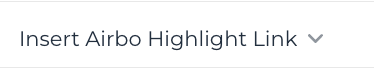
This link ensures employees are directed straight to the Highlight without needing to log in manually.
The link will appear as “Click Here” in the email or text.
Important: If you do not include this link, employees will not be able to access the Highlight directly.
Step 4: Send a Test Message
Before sending your Broadcast:
-
Click Review.
-
Send a test message to yourself to confirm how your message appears by email or text.
You’ll see exactly what employees will receive.
Step 5: Send or Schedule Your Broadcast
Once your Broadcast looks good:
-
Click Send Broadcast.
-
Select Send Now to send immediately.
Your message will be sent to all employees who have been:
-
Uploaded via a user file, or
-
Have created accounts in Airbo.
Key Notes
-
Broadcasts are not the same as Tiles messages. They are simple text or email messages with the option to include a direct Highlight link.
-
Your Highlight must be live before sharing the link.
-
You must use the “Insert Airbo Highlight Link” button when creating your Broadcast to add the Highlight link. (instead of “Always include the Insert Airbo Highlight Link when creating your Broadcast.“)
-
Upload your user file before posting.
-
During Open Enrollment, allow 24-48 business hours for your user file upload.
Next Step
Once your Broadcast is sent, head to the Reports tab to track employee engagement and see how many employees clicked into your Highlight.