
Creating a Scheduled Broadcast
When you finish writing your broadcast message, you can choose to send it right away or schedule it for later. This is helpful when you want to reach employees at the best time, even if you are not available to send it yourself.
Step 1: Go to the Review Screen
Complete your broadcast message setup. This includes choosing your recipients and writing your message content.
- Click the Broadcast tab in your dashboard
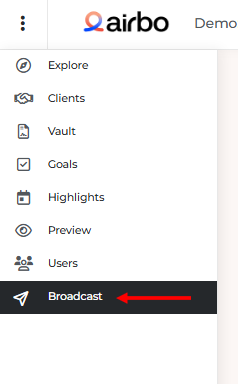
- Create a new broadcast or open a draft
- Complete all required fields
- Click "Review" to preview your message
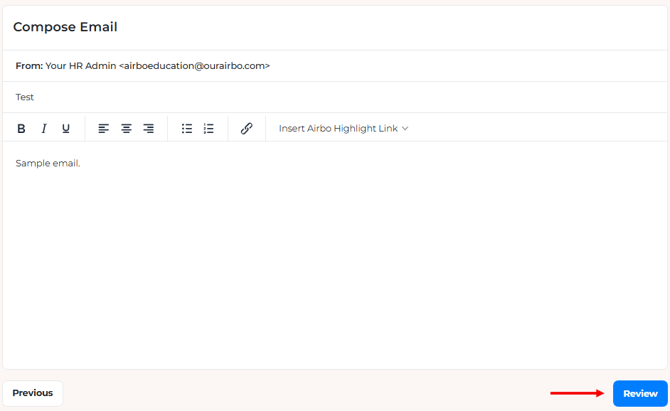
What you'll see: A preview of your broadcast with recipient count and message content.
Tip: Use the "Send Test Message" option to see exactly what employees will receive before scheduling.
Step 2: Choose Your Send Option
On the Review screen, you will see options for when to send your message.
- Look for the send options below your message preview
- Choose "Schedule for Later" instead of "Send Now"
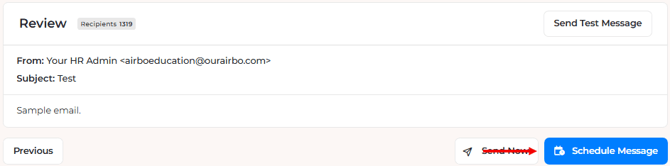
- A scheduling window will appear
What you'll see: A date and time picker with your board's timezone displayed.
Step 3: Pick Your Date and Time
Select when you want your broadcast to go out.
- Click the date field to open the calendar
- Select your desired date
- Choose the time from the dropdown
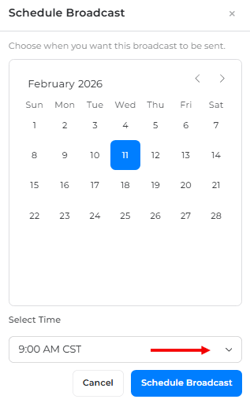
- Confirm the timezone matches your board settings
- Click "Schedule Broadcast" to confirm
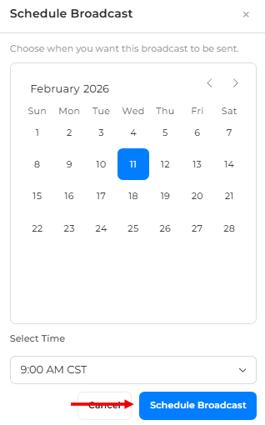
What you'll see: A confirmation message and your broadcast will move to "Scheduled" status.
Tip: The timezone shown matches what is set in your Setup tab. Double check this is correct for your recipients.
Viewing Scheduled Broadcasts
After scheduling, you can track all your broadcasts in one place.
Step 1: Open Broadcast History
- Click the Broadcast tab in your dashboard
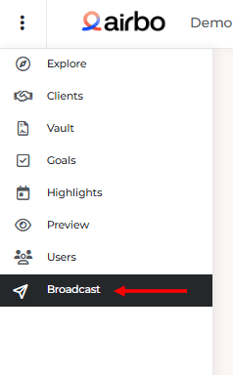
- Look at the History table below
What you'll see: A list of all broadcasts with their status and dates.
Step 2: Find Your Scheduled Message
Scheduled broadcasts are easy to spot in your history.
- Look for the "SCHEDULED" status label
- Notice the clock icon next to scheduled items
- Check the Date column for your scheduled send time
What you'll see: Your scheduled broadcast with its planned send date and time, plus the timezone.
Editing or Canceling a Scheduled Broadcast
Plans change. You can update or cancel your scheduled broadcast anytime before it sends.
To Send Immediately
If you need to send your scheduled broadcast right now:
- Find your scheduled broadcast in the History table
- Click on it to open the details
- Click "Send Now"
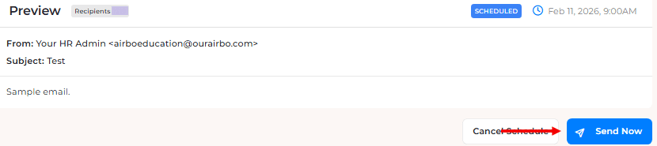
- Confirm when prompted
What happens: Your broadcast sends immediately and the status changes to "SENT."
To Cancel the Schedule
If you want to stop the broadcast from sending:
- Find your scheduled broadcast in the History table
- Click the three dots on the right side of the row

- Select "Cancel Schedule" from the menu
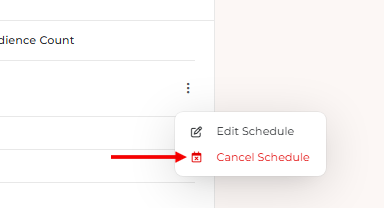
- Confirm when prompted
What happens: Your broadcast returns to "DRAFT" status. You can edit it and reschedule later.
To Edit the Scheduled Date or Time
If you need to change when your broadcast will send:
- Find your scheduled broadcast in the History table
- Click the three dots on the right side of the row

- Select "Edit Schedule" from the menu
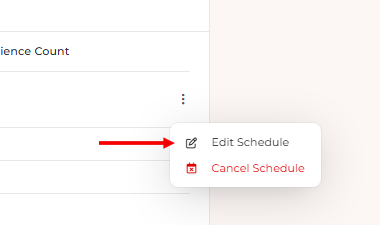
- Pick a new date and time
- Save your changes
What happens: Your broadcast stays scheduled but with the updated send time.
Tips for Success
- Do this: Send a test message first to make sure formatting looks right
- Do this: Double check your timezone before scheduling
- Avoid this: Forgetting to verify recipient counts before scheduling
- Remember: You can always cancel or change a scheduled broadcast before it sends
Troubleshooting
My scheduled broadcast shows the wrong timezone Check your board's timezone in the Setup tab. The scheduler uses whatever timezone is set there. Update it if needed, then reschedule your broadcast.
I cannot find my scheduled broadcast Look in the Broadcast History table and filter by "SCHEDULED" status. Scheduled broadcasts show a clock icon to help you spot them quickly.
My broadcast did not send at the scheduled time Contact support if your broadcast shows "SCHEDULED" status past the scheduled time. Our team can check if there was a delivery issue.
I want to change the scheduled time Click the three dots on the right side of your scheduled broadcast in the History table. Select "Edit Schedule" to pick a new date and time without canceling.
Related Articles
- How to Upload an Employee Eligibility File
- How to Add Your Audience to a Broadcast
- How to Promote a Highlight Using Broadcast
- How to Create Custom Audiences in Airbo
Need more help? Contact support@airbo.com