
Before You Start
- You must be an admin on your Airbo board
- You should have at least one file uploaded (or ready to upload) to the Vault
Time needed: 2 minutes
Overview
The Vault tab lets you assign categories to your files and sort the table by column. This means no more scrolling through a long, unorganized list to find a document. You can label files by type and sort them in seconds.
Available categories include:
- Health and Welfare
- Retirement Savings
- Financial Protection
- Voluntary/Supplemental Benefits
- Social Security & Medicare
- & more
Assign a Category When Uploading a File
When you upload a new file to the Vault, you can now assign it a category right away.
- Go to the Vault tab on your board.
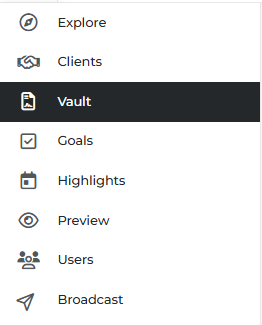
- Click the button to upload a new file.

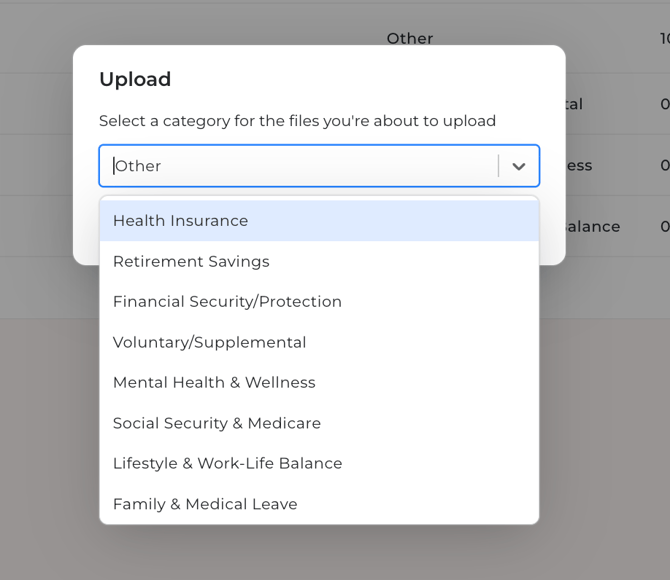
- Choose a category from the dropdown menu (e.g., Health Insurance, Retirement Savings, Mental Health & Wellness, etc.).
- Select your file from your computer.
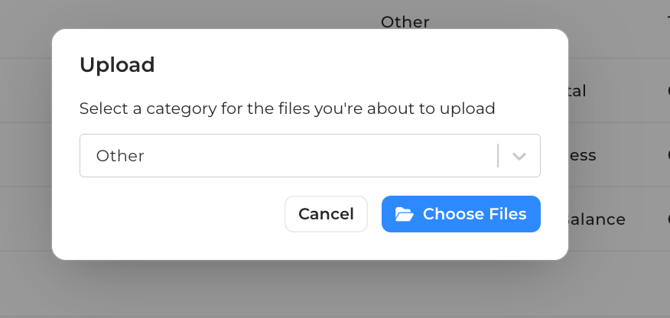
What you'll see: Your file will appear in the Vault table with the category label displayed in its row.
Tip: Pick a category at upload time so your Vault stays organized from the start. It's much easier than going back to categorize files later.
Edit a Category on an Existing File
Already have files in your Vault? You can add or change categories on them at any time.
- Go to the Vault tab on your board.
- Find the file you want to update.
- Click to edit the file details.

- Select a new category from the dropdown menu.
- Changes will automatically save.
What you'll see: The updated category will appear next to the file in the Vault table.
Sort Your Vault Table
You can now click on column headers to sort your Vault files. This makes it fast to find exactly what you're looking for.
Columns you can sort by:
- Name, sort A to Z or Z to A
- Date, sort newest first or oldest first
- Category, group files by their category label
How to sort:
- Go to the Vault tab.
- Click on any column header (Name, Date, or Category).

- Click the same header again to reverse the sort order.
What you'll see: The table will reorder instantly based on the column you selected.
Tip: Sorting by category is a great way to quickly pull up all your Compliance or Wellness documents at once.
Tips for Success
- Do this: Assign a category to every file as you upload it. A few seconds now saves time later.
- Avoid this: Leaving files uncategorized. An unorganized Vault is harder to navigate as your file count grows.
- Remember: You can always edit a file's category later if you need to recategorize it.
Troubleshooting
I don't see the category dropdown when uploading. Make sure you are logged in as an admin. The category feature is only available to admin users.
My files aren't sorting correctly. Try refreshing the page. If the issue continues, contact support.
Related Articles
Need more help? Contact support@airbo.com