
Use Your Audience in Broadcast Messages
Target your emails and texts to specific audiences.
Step 1: Start creating a broadcast message
1. Go to Broadcast Messages
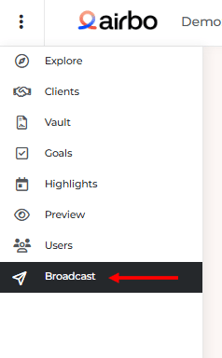
2. Begin setting up your message
Step 2: Choose your targeting method
In the Audience section, you'll see two tabs:
- All Airbo Contacts: Sends to everyone in your system
- Target by Audience: Sends only to a specific audience
Step 3: Select Target by Audience
1. Click the Target by Audience tab
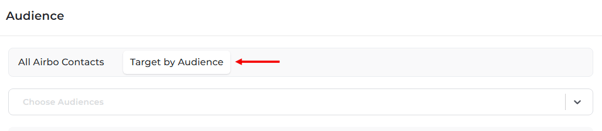
2. Click the Choose Audiences dropdown

3. Select your custom audience from the list
What you'll see: The contact breakdown updates to show how many people in your audience have email addresses and phone numbers.
Step 4: Choose your broadcast channel
1. Select Email, Text, or both based on your audience's contact info
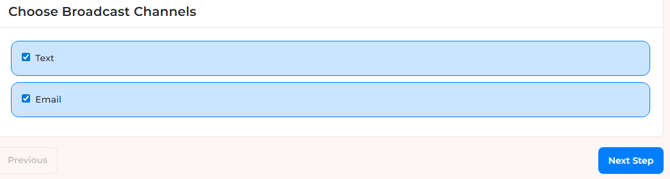
2. Continue setting up your message
Note: If your audience has zero phone numbers, the Text option won't reach anyone. Check the contact breakdown before sending.
Tips for Success
- Test first: Send a test broadcast to yourself before messaging your full audience.
Troubleshooting
My audience size shows zero Check that your segment combinations are correct. If you used AND logic, employees must match all criteria. Some combinations may not have any employees in common.
I can't find my audience in the dropdown Make sure you saved the audience after creating it. Return to the Audiences tab to confirm it appears in your list.
The wrong people received my broadcast Double-check which audience you selected. If you chose "All Airbo Contacts," the message went to everyone, not your custom audience.
Related Articles
Need more help? Contact support@airbo.com