
Before You Start
- New employees must be added to Airbo first (via census or manual add)
- Employee email addresses must be correct and active
Time needed: 5 minutes to understand, 2 minutes to troubleshoot
The Employee Onboarding Process
When you add a new employee to Airbo, here's what happens:
- You add the employee - Either through a census file upload or manual add
- Airbo creates their account - This happens automatically
- Employee gets an invitation - Airbo sends a welcome email
- Employee clicks the link - They're taken to your board
- Employee sets up access - They can start viewing content
Note: Employees don't need to create passwords. Airbo uses secure email links for access.
Adding a New Employee
Option 1: Upload a census file
This is best when adding multiple employees.
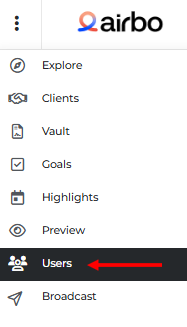
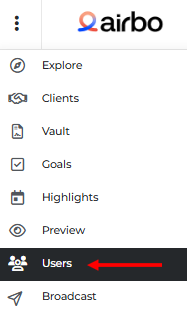
- Go to your dashboard. Click Users in the navigation.
- Download the CSV template
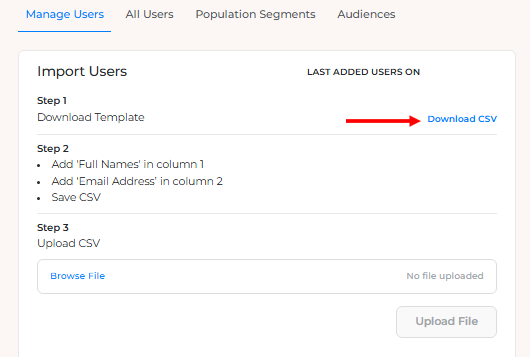
- Add new employee names and emails
- Upload the updated file
What happens next: Processing takes 24-48 hours. You'll receive an email when complete.
Option 2: Add manually
This is best for adding one or two employees quickly.
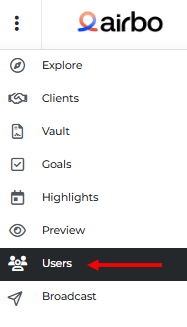
- Go to your dashboard. Click Users in the navigation.
- Under Add User, enter the employee's name and email
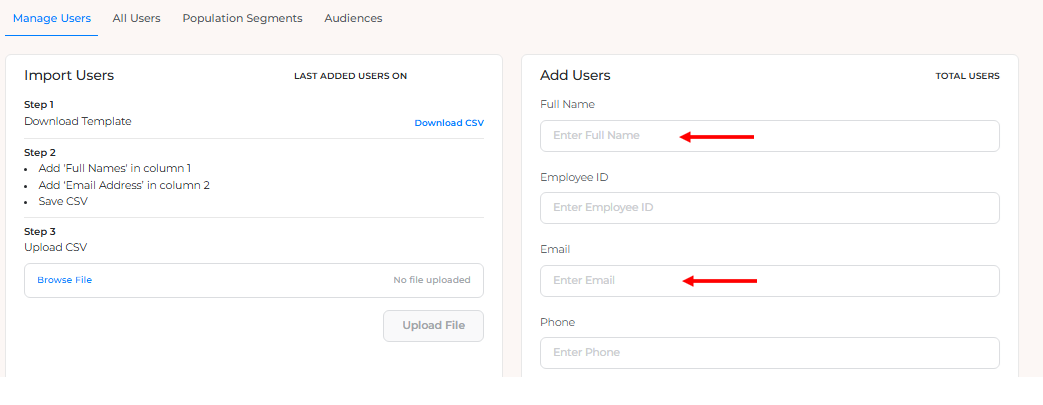
- Click Add User to confirm
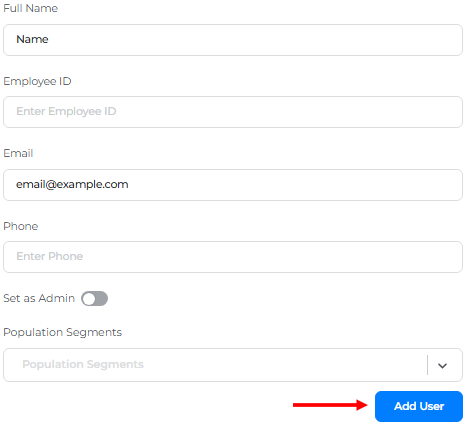
- Choose to send an invitation immediately
Tip: If you're adding employees to an existing census file, include all current employees plus new ones. Airbo reconciles the data automatically.
What Employees Receive
The invitation email
New employees receive a welcome email that includes:
- A link to access your Airbo board
- No password required (the link contains secure access)
- Your organization's branding
Note: Emails come from your board's configured sender address, not from Airbo directly.
After clicking the link
Employees are taken directly to your board where they can:
- View available tiles and content
- Complete activities
- Explore benefits information
Resending an Invitation
If an employee didn't receive their invitation or can't find it:
Step 1: Find the employee
- Go to your dashboard. Click Users > All Users
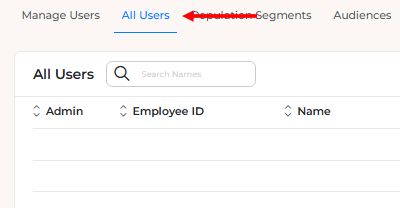
- Search for the employee by name or email
Step 2: Resend the invitation
- Click Invite to resend invitation

What you'll see: A confirmation that the invitation was sent
Warning: Check that the email address is correct before resending. Typos are the most common reason invitations don't arrive.
Troubleshooting Access Issues
Employee says they didn't receive the email
Check these things:
- Spam folder - Ask them to check spam/junk folders
- Email address - Verify it's spelled correctly in Airbo
- Corporate filters - Your IT may be blocking Airbo emails (see Whitelisting guide)
Fix: Correct the email if needed, then resend the invitation.
Employee clicks the link but can't access
Check these things:
- Link expired - Invitation links don't expire, but bookmarks might not work
- Wrong board - Make sure they're accessing the correct Airbo board
- Browser issues - Have them try a different browser or clear cookies
Fix: Resend a fresh invitation email.
Employee was added but shows no activity
What happened: The employee may have been added but never opened their invitation.
Fix: Resend the invitation and follow up directly with the employee.
Tips for Success
- Do this: Add new employees as soon as they're hired to include them in communications
- Avoid this: Waiting until the last minute before a highlight launch
- Remember: Employees can access Airbo from any device, including mobile
Troubleshooting Quick Reference
| Problem | Likely Cause | Solution |
| No invitation received | Wrong email or spam filter | Check email, resend |
| Can't click the link | Email client blocking | Copy and paste URL |
| Link doesn't work | Corrupted link | Resend fresh invitation |
| Wrong board loads | Multiple boards | Verify board assignment |
Related Articles
Need more help? Contact support@airbo.com