
What You'll Learn:
- Add prizes to a Highlight
- Customize prize details
- See how employees view prizes and entries
- Follow best practices for using prizes
Adding Prizes
- Go to the Highlights tab and open your Highlight.
- Click on the highlight and select Edit Highlight.
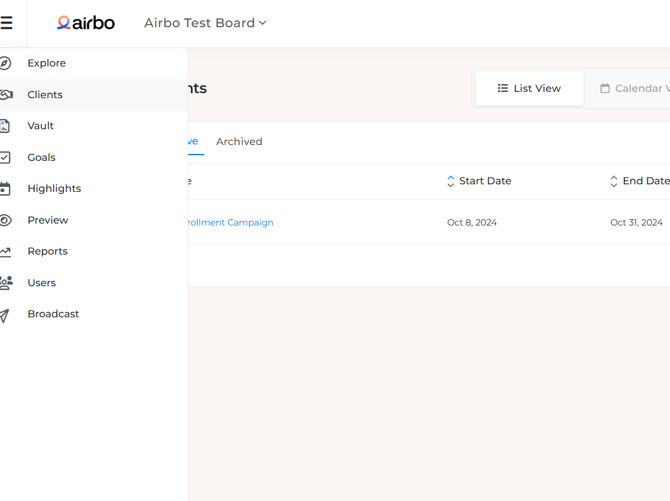
- Navigate to the Prizes section.
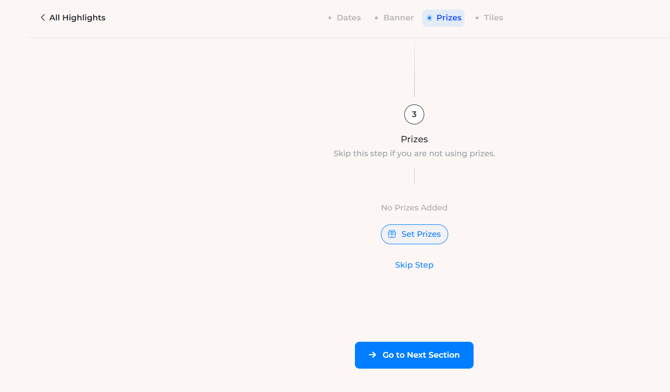
- Click Add Prize.
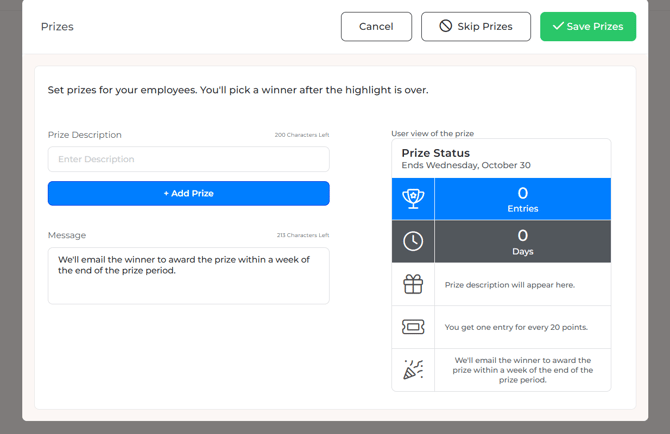
- Enter the prize description.
- Example: 10 Amazon gift cards
- Example: Nationwide pet insurance donation
- Repeat for as many prizes as you have and select save prizes once you are finished.
Prize Status Preview
As you add prizes, you’ll see a Prize Status Preview on the right side of the screen.
- This shows how employees will see the available prizes in their account
- Employees can check how many entries they’ve earned
- Entries are earned by completing interactions on tiles. Each completion equals points, and those points become raffle entries
How Employees See Prizes
- Employees can click into their account to view:
- The prize list
- How many entries they’ve earned
- Example: Kate has 39 entries for this demo because she’s completed multiple interactions.
Best Practices
- Keep It Simple: A few strong prizes are often more motivating than a long list
- Promote Vendor Partnerships: Ask vendors if they can provide items like gift cards, swag, or service credits
- Highlight Winners: Announce prize winners in a follow-up email or company channel to build excitement
- Optional Step: Remember, prizes are not required. You can run a Highlight without them
Need Help?
If you have questions or need assistance setting up prizes, our team is happy to help. Reach out anytime!