
Before You Start
You will need:
- Admin access to your Airbo board
- At least one highlight or broadcast already created
Time needed: About 5 minutes to get familiar with the layout.
What Is the Calendar Tab?
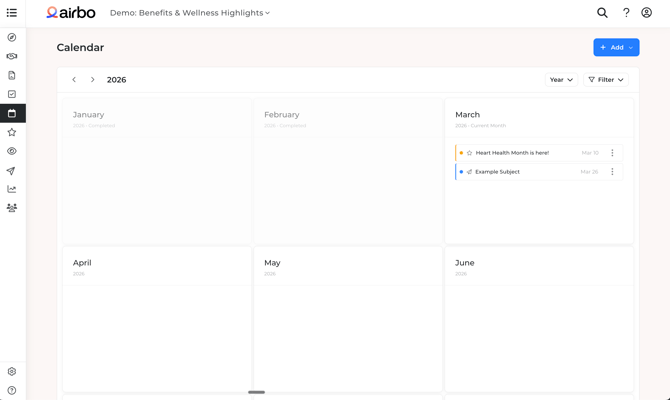
The Calendar tab is a brand-new addition to Airbo. It gives you a single place to see everything you have scheduled, all in one view.
Before this, highlights and broadcasts calendars lived only on separate pages. If you wanted to know what employees were receiving in a given month, you had to check both places. The Calendar tab changes that. Highlights and broadcasts appear together on a shared 12-month grid so you can see the full picture at once.
Note: Your existing Highlights and Broadcasts tabs are still there. The Calendar tab is an addition, not a replacement. You can still manage highlights and broadcasts from their own tabs the same way you always have.
Reading the Calendar
The calendar shows a 3-column grid with one card per month. Each card displays the highlights and broadcasts scheduled for that month, with the item name and date.
Past months are labeled Completed. The current month is labeled Current Month. Future months show upcoming content.
Each item shows a colored dot and a colored left border to indicate its status at a glance. A three-dot menu appears on the right side of each item.
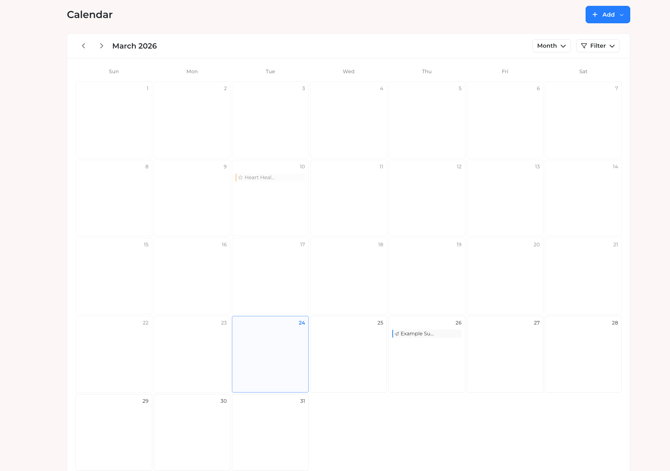
Year Navigation
Use the left and right arrows at the top of the calendar to move between years. The current year is shown in bold next to the arrows. You can also click the Year dropdown to jump to a specific year.
Filtering What You See
Click the Filter button in the top-right corner of the calendar to open the filter panel. You can filter highlights and broadcasts independently.
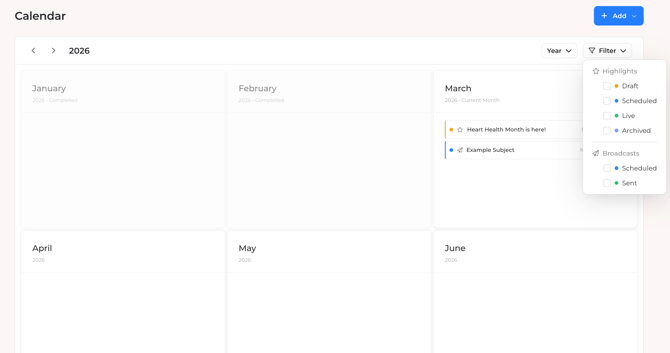
Highlight Statuses
- Draft
- Scheduled
- Live
- Archived
Broadcast Statuses
- Scheduled
- Sent
Check or uncheck any combination. The calendar updates right away. You can mix and match, for example, show only Live highlights and Scheduled broadcasts if you want to focus on what's active and upcoming.
Tip: Use the filter to check in on upcoming scheduled broadcasts before sending a new one. You can quickly see if a week is already heavy on communications.
Adding a Highlight or Broadcast from the Calendar
You don't need to leave the Calendar tab to create new content. Click the blue + Add button in the top-right corner, then choose what you want to create:
- Highlight: Highlight
- Broadcast: Broadcast
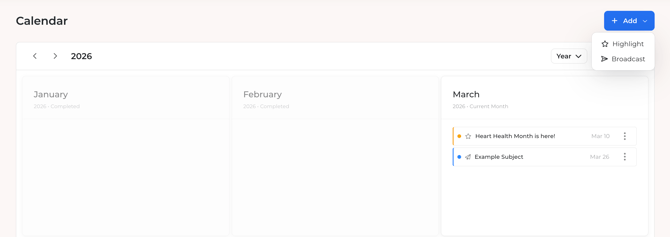
Selecting either option takes you to the creation flow for that content type. When you're done, you'll return to the Calendar tab and see your new item on the grid.
Taking Action from the Calendar
Hover over any item in the calendar to see the three-dot menu. Click it to take action without navigating away.
Available actions depend on the item type and status. For example:
- Edit Schedule: Update the send date or time for a scheduled broadcast.
- Cancel Schedule: Move a scheduled broadcast back to draft.
- Delete: Remove a draft broadcast.
- Archive: Archive a live highlight.
[Screenshot: Three-dot menu open on a calendar item showing available actions]
⚠️ Warning: Deleting a draft broadcast cannot be undone. Double-check before confirming.
Tips for Success
-
Do this: Make the Calendar tab your starting point at the beginning of each month. A quick look at the grid helps you spot content gaps before they become a problem.
- Do this: Use the Filter button to focus on just what's scheduled. This gives you a clean view of what's queued up without past sends cluttering the view.
- Avoid this: Don't forget you can add content directly from this page. You don't need to navigate to the Highlights or Broadcasts tab to create something new.
Troubleshooting
I don't see the Calendar tab in my navigation. The Calendar tab is only visible to admin users. If you have admin access and still can't find it, contact your Airbo customer success manager.
My highlights or broadcasts aren't showing on the calendar. Open the Filter dropdown and check that the relevant statuses are selected. If a status is unchecked, those items won't appear on the calendar.
I added a new broadcast, but I don't see it on the calendar. Make sure the Scheduled filter is turned on. Draft broadcasts won't appear until they have a scheduled send date. Check the Broadcasts tab to confirm the status of your new item.
Related Articles
Need more help? Contact support@airbo.com